
Day
Day
03
01
(Sample)
Challenge
Challenge
⬤
⬤
⬤
⬤
⬤
⬤
⬤
⬤
⬤
⬤
⬤
⬤
⬤
⬤
⬤
|
|
|
|
|
|
|
|
|
|
|
|
|
|
|
21-Day pyRevit Challenge
Mon
Tue
Wed
Thr
Fri
Sat
Sun
Tool Of The Day:
"Name Swapper"

Renaming can get really repetitive in Revit…
So, why don't we create a tool to batch rename your views? Plus, the same logic applies to renaming anything you want in Revit!
Today We're Practicing:
>>>
How to Read/Write Properties
>>>
How To Make Changes
>>>
pyRevit Select Form✨
>>>
Simple UI FlexForm✨

Let's Create
"Name Swapper"
Using 7-Step PROCESS
Let's Create
"Name Swapper"
Using 7-Step PROCESS
PLAN
Manual Renaming Sucks…
Just think of days where you had to create a new set of views and sheets and then name them correctly. 🤮BOOOORING… Plus, very slow…
So, The Goal for Today's Tool:
Create a tool that can batch rename views.
For this tool we need to select views and modify their names using Find/Replace logic.
This tool will save you a lot of time and you'll be able to adjust the code to rename anything else you want (Properties, Parameters, Names…)
So, let's dive in.
Today's Tool Demo:
Batch rename views with Find/Replace Logic.
Plus, the same logic can be adjusted to anything else!
This takes less than 40 lines of code!
excl. comments and spaces…
RESEARCH
Coding CheatSheet
Here's everything you might need for today's challenge.

Coding Blocks
1. Get Selected Elements
3. Read/Write Property
5. Custom UI (RPW FlexForm)
7. Rename Unique View Name
2. Select Views (pyRevit form)
4. Create Linkify Object
6. Revit Forbidden Symbols
1. Get Selected Elements
2. Select Views (pyRevit form)
3. Read/Write Property
4. Create Linkify Object
5. Custom UI (RPW FlexForm)
6. Revit Forbidden Symbols
7. Rename Unique View Name

Revit API Docs
Transaction() Constructor
Transaction.Start() Method
Transaction.Commit() Method

pyRevit Dev Docs
pyRevit Docs: forms.select_views (Technical Docs)
pyRevit Labs: forms.select_views(Samples Docs)

Notes
🔸Use Transaction to make changes with API
Revit has protection from accidental API changes. You can only change something if you explicitly Start and Commit transaction. (simple)
🔸Unique View.Name Exception
View names must be unique. However the same name can exist across different view types (Section, ViewPlan, AreaPlan, StructurePlan…)

Extra Resources
rpw.FlexForm Docs (Easy UI Form)

AI Prompt
You can ask AI to help you with the research
but it's NOT 100% perfect solution. Do not rely too much on AI.
AI Research Prompt
RESEARCH
Coding CheatSheet
Here's everything you might need for today's challenge.
Coding Blocks
1. Get Selected Elements
2. Select Views (pyRevit form)
3. Read/Write Property
4. Create Linkify Object
5. Custom UI (RPW FlexForm)
6. Revit Forbidden Symbols
7. Rename Unique View Name
Revit API Docs
Transaction() Constructor
Transaction.Start() Method
Transaction.Commit() Method
pyRevit Dev Docs
pyRevit Docs: forms.select_views (Technical Docs)
pyRevit Labs: forms.select_views(Samples Docs)
Notes
🔸Use Transaction to make changes with API
Revit has protection from accidental API changes. You can only change something if you explicitly Start and Commit transaction. (simple)
🔸Unique View.Name Exception
View names must be unique. However the same name can exist across different view types (Section, ViewPlan, AreaPlan, StructurePlan…)
Extra Resources
rpw.FlexForm Docs (Easy UI Form)
AI Prompt
You can ask AI to help you with the research
but it's NOT 100% perfect solution. Do not rely too much on AI.
AI Research Prompt


NB!
TRY BUILDING
THIS TOOL YOURSELF
DON'T RUSH TO SOLUTION
Unless… You're a Beginner
According to GENERATION EFFECT
The Harder You Work, The Deeper It'll be Wired in Your Brain
NB!
TRY BUILDING
THIS TOOL YOURSELF
DON'T RUSH TO SOLUTION
Unless… You're a Beginner
According to GENERATION EFFECT
The Harder You Work, The Deeper
It'll be Wired in Your Brain

CODE
Code Quick-n-Dirty.
The Goal is to create a proof of concept. Don't try to make it perfect. Skip steps if necessary. Keep it ugly. Keep it slow. JUST. MAKE. IT. WORK…
Proof Of Concept
This tool is very straight-forward and there's not much we can skip. But nevertheless, let's focus on bare minimum functionality and simplify a few steps.
For now, we will:
Select View/Views
Define Naming Rules (Simplify)
Rename Views
Show Changes (Simplify)
Keep it all as simple as possible at first.
Let's dive in
SCRIPT: PROOF OF CONCEPT
CODE
Code Quick-n-Dirty
The Goal is to create a proof of concept. Don't try to make it perfect. Skip steps if necessary. Keep it ugly. Keep it slow. JUST. MAKE. IT. WORK…
Proof Of Concept
This tool is very straight-forward and there's not much we can skip. But nevertheless, let's focus on bare minimum functionality and simplify a few steps.
For now, we will:
Select View/Views
Define Naming Rules (Simplify)
Rename Views
Show Changes (Simplify)
Keep it all as simple as possible at first.
Let's dive in
SCRIPT: PROOF OF CONCEPT
EDIT
Refactor Everything
Once proof-of-concept works - we can focus on all steps to make everything more structured, optimized and easier to read.
REFACTOR CODE
Now, it's time to refactor our proof of concept.
Most steps already work well. But users need to set their own naming rules, and it's best to add a custom UI Form.
UI Forms can be a complex topic, but luckily pyRevit has a great option for creating simple forms using rpw.forms.FlexForm.
REFACTORED CODE
REFACTORED CODE (with Function)
EDIT
Refactor Everything
Once proof-of-concept works - we can focus on all steps to make everything more structured, optimized and easier to read.
REFACTOR CODE
Now, it's time to refactor our proof of concept.
Most steps already work well. But users need to set their own naming rules, and it's best to add a custom UI Form.
UI Forms can be a complex topic, but luckily pyRevit has a great option for creating simple forms using rpw.forms.FlexForm.
REFACTORED CODE
REFACTORED CODE (with Function)
STRESS-TEST
Time To Break It!
Don't rush sharing your tools.
Try breaking it before your team does it… You don't want to hear how your tools fails at the cost of your reputation.
Test #1 - Cancel View Selection Form
If you use any UI forms then you need to test it:
What if you select nothing?
What if you cancel UI form?
What if you select wrong item (if possible)?
UI forms can very often trigger errors if they're used wrong. But don't worry, it often requires just a few extra lines of code to fix.
In this case you'll probably get an error if you cancel the form. So let's make sure that we get selected views from the form or stop execution with a warning.
Check Code Below:
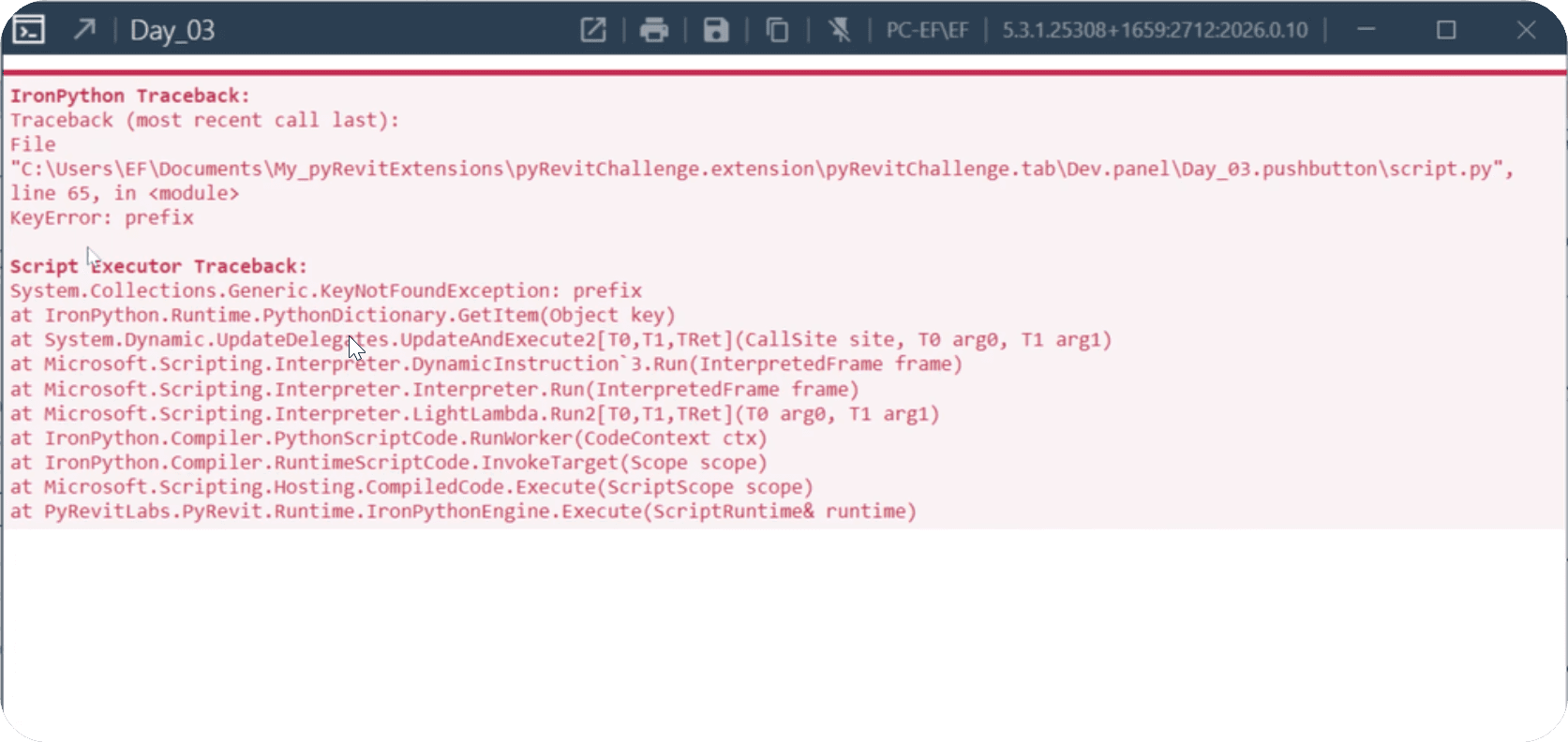
Always test UI Forms:
- Cancel Form
- Select Nothing
SOLUTION #1 - Verify View Selection
Test #2 - Cancel Renaming Rules Form
Same as the previous form we need to test what if we:
Select Nothing
Cancel UI Form
Provide Wrong Values
Again, we just need to ensure that we get user input from the form or stop execution asking to try it again.
Always test UI Forms:
- Cancel Form
- Select Nothing
SOLUTION #2 - Verify User Input
Test #3 - View Name Exists
When renaming views - new name has to be unique. Otherwise, you'll get an error saying that name is not unique.
There are different ways to handle it.
I like to add star-symbols (*) in the end so it actually gets a new unique name and indicates to user that similar name already exists.
Also, I prefer using for-loop to avoid getting stuck in infinite while loops. I'm sure that 10-20 iterations is more than enough to address this issue.
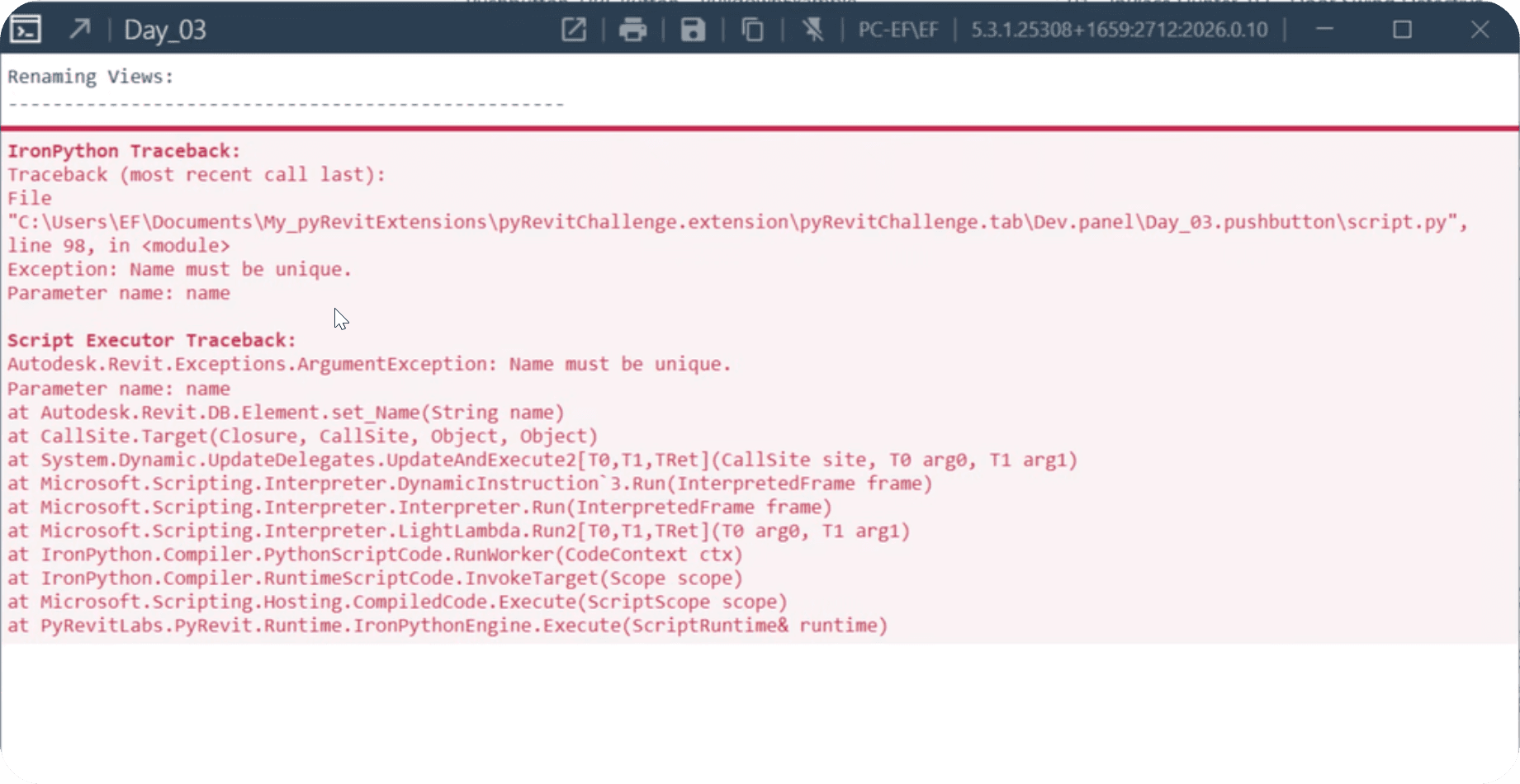
View names have to be unique, so test it too.
SOLUTION #3
Test #4 - Forbidden Symbols
Not only view names have to be unique, they should also avoid using forbidden symbols ("\:{}[]|; <>?`~").
It's very unlikely that your users will try to use them, but nevertheless might be a good idea to address it.
Again, there are different ways to handle this case, but I'll just clear new_name from these symbols without notifying user. I hope they'll understand it…
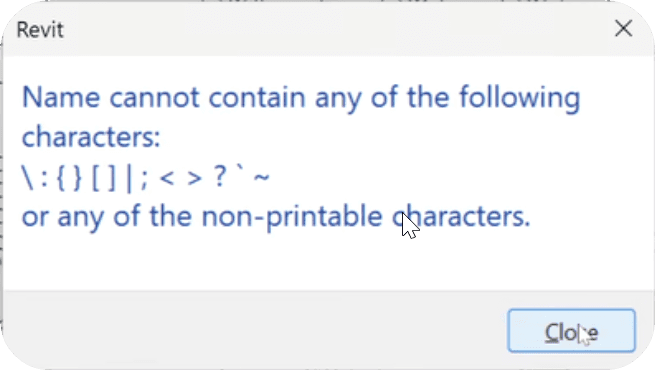
Remember that Revit doesn't like a bunch of symbols.
SOLUTION #4
Test #5 - API Changes
Lastly, let's make sure that we don't have any changes in different Revit versions due to API changes.
In the beginning it's best to test it manually, but first let's ask for ChatGPT to analyze and suggest any improvements to our code.
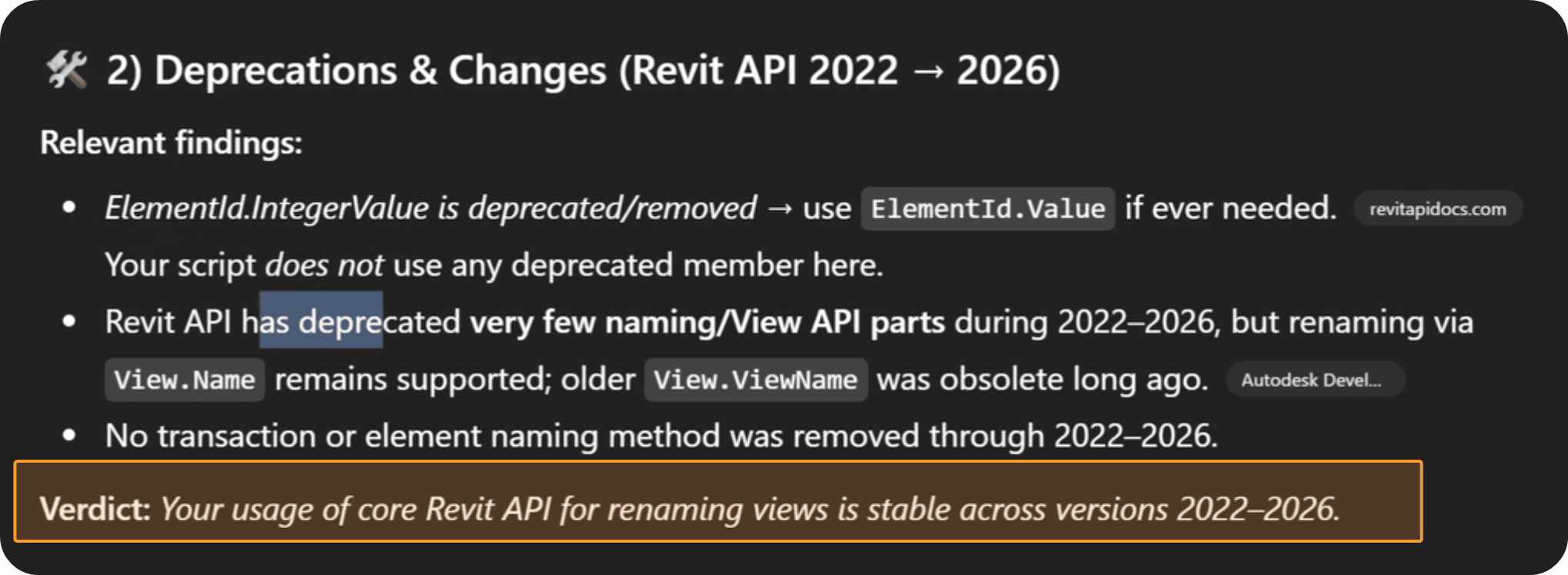
Test across multiple Revit Version, or at least ask ChatGPT to analyze it for you with suggestions.
PROMPT:
STRESS-TEST
Time To Break It!
Don't rush sharing your tools.
Try breaking it before your team does it… You don't want to hear how your tools fails at the cost of your reputation.
Test #1 - Cancel View Selection Form
If you use any UI forms then you need to test it:
What if you select nothing?
What if you cancel UI form?
What if you select wrong item (if possible)?
UI forms can very often trigger errors if they're used wrong. But don't worry, it often requires just a few extra lines of code to fix.
In this case you'll probably get an error if you cancel the form. So let's make sure that we get selected views from the form or stop execution with a warning.
Check Code Below:
Always test UI Forms:
- Cancel Form
- Select Nothing
SOLUTION #1 - Verify View Selection
Test #2 - Cancel Renaming Rules Form
Same as the previous form we need to test what if we:
Select Nothing
Cancel UI Form
Provide Wrong Values
Again, we just need to ensure that we get user input from the form or stop execution asking to try it again.
Always test UI Forms:
- Cancel Form
- Select Nothing
SOLUTION #2 - Verify User Input
Test #3 - View Name Exists
When renaming views - new name has to be unique. Otherwise, you'll get an error saying that name is not unique.
There are different ways to handle it.
I like to add star-symbols (*) in the end so it actually gets a new unique name and indicates to user that similar name already exists.
Also, I prefer using for-loop to avoid getting stuck in infinite while loops. I'm sure that 10-20 iterations is more than enough to address this issue.
View names have to be unique, so test it too.
SOLUTION #3
Test #4 - Forbidden Symbols
Not only view names have to be unique, they should also avoid using forbidden symbols ("\:{}[]|; <>?`~").
It's very unlikely that your users will try to use them, but nevertheless might be a good idea to address it.
Again, there are different ways to handle this case, but I'll just clear new_name from these symbols without notifying user. I hope they'll understand it…
Remember that Revit doesn't like a bunch of symbols.
SOLUTION #4
Test #5 - API Changes
Lastly, let's make sure that we don't have any changes in different Revit versions due to API changes.
In the beginning it's best to test it manually, but first let's ask for ChatGPT to analyze and suggest any improvements to our code.
Test across multiple Revit Version, or at least ask ChatGPT to analyze it for you with suggestions.
PROMPT:
Want to unlock x20 More Days?
Each day will focus on one new tool that introduces one new concept.
And in 21 Days you'll learn a lot while creating 21 real tools.

Join 21-Day pyRevit Challenge
To Build 21 Practical Tools From Scratch.
⬤
⬤
⬤
⬤
⬤
⬤
⬤
⬤
⬤
⬤
⬤
⬤
⬤
⬤
⬤
|
|
|
|
|
|
|
|
|
|
|
|
|
|
|
21-Day pyRevit Challenge
Sorry you missed it…
The Challenge has already started.
Mon
Tue
Wed
Thr
Fri
Sat
Sun
NEXT LAUNCH: TO BE ANNOUNCED
Finish within 60 days
To Get 100% Money Back.
Once You Join The Challenge…
You Get x21 Daily Tasks
Each day starts with a clear explanation of a pyRevit tool and overview of necessary API concepts.
You Get x21 Coding Cheat-Sheets
I prepared everything you might need to build the tool. No need to waste time searching for code, docs, resources…
You Get x21 Video-Solutions
Follow complete video tutorials for each step to learn how I Think, Code and Stress-Test new pyRevit tools.
Plus, 5 BONUSES To Help You WIN!
You Get FREE BONUS #1 - pyRevit FastTrack Setup
A quick mini-course to setup everything for pyRevit the right way under 60 minutes. (Incl. StarterKit 2.0)
You Get FREE BONUS #2 - P.R.O.C.E.S.S. Method Training
Learn more about 7-Step Process for creating new pyRevit tools from scratch that leads to best results.
You Get FREE BONUS #3 - Private Group Access
Join LinkedIn group to meet other participants, share your progress, make friends and stay accountable together.
You Get FREE BONUS #4 - 3x Live Q/A Sessions
Join the live call to get direct, personalized answer to your questions. Sometimes a short answer is all you need.
Plus, pyRevit "Dream Tool" Hackathon
3,591.00 Prize Pool)
(
After the challenge put your new skill to the test and compete for a prize pool of 3,591EUR + Podcast Spot and Source Code from Hackathon submissions.
I'll provide you everything to WIN.
I'm genuinely rooting for you to complete this challenge and become pyRevit Dev!
You just need to show up daily.

- Erik Frits (Your pyRevit Instructor)
Have Questions? support@learnrevitapi.com
Join 21-Day pyRevit Challenge
To Build 21 Practical Tools From Scratch.
⬤
⬤
⬤
⬤
⬤
⬤
⬤
⬤
⬤
⬤
⬤
⬤
⬤
⬤
⬤
|
|
|
|
|
|
|
|
|
|
|
|
|
|
|
21-Day pyRevit Challenge
Sorry you missed it…
The Challenge has already started.
Mon
Tue
Wed
Thr
Fri
Sat
Sun
NEXT LAUNCH: TO BE ANNOUNCED
Finish within 60 days
To Get 100% Money Back.
Once You Join The Challenge…
You Get x21 Daily Tasks
Each day starts with a clear explanation of a pyRevit tool and overview of necessary API concepts.
You Get x21 Coding Cheat-Sheets
I prepared everything you might need to build the tool. No need to waste time searching for code, docs, resources…
You Get x21 Video-Solutions
Follow complete video tutorials for each step to learn how I Think, Code and Stress-Test new pyRevit tools.
Plus, 5 BONUSES To Help You WIN!
You Get FREE BONUS #1 - pyRevit FastTrack Setup
A quick mini-course to setup everything for pyRevit the right way under 60 minutes. (Incl. StarterKit 2.0)
You Get FREE BONUS #2 - P.R.O.C.E.S.S. Method Training
Learn more about 7-Step Process for creating new pyRevit tools from scratch that leads to best results.
You Get FREE BONUS #3 - Private Group Access
Join LinkedIn group to meet other participants, share your progress, make friends and stay accountable together.
You Get FREE BONUS #4 - 3x Live Q/A Sessions
Join the live call to get direct, personalized answer to your questions. Sometimes a short answer is all you need.
Plus, pyRevit "Dream Tool" Hackathon
3,591.00 Prize Pool)
(
After the challenge put your new skill to the test and compete for a prize pool of 3,591EUR + Podcast Spot and Source Code from Hackathon submissions.
Have Questions? support@learnrevitapi.com
⬤
⬤
⬤
⬤
⬤
⬤
⬤
⬤
⬤
⬤
⬤
⬤
⬤
⬤
⬤
|
|
|
|
|
|
|
|
|
|
|
|
|
|
|
21-Day pyRevit Challenge
Sorry you missed it…
The Challenge has already started.
Mon
Tue
Wed
Thr
Fri
Sat
Sun
NEXT LAUNCH: TO BE ANNOUNCED
Finish within 60 days
To Get 100% Money Back.
Once You Join The Challenge…
You Get x21 Daily Tasks
Each day starts with a clear explanation of a pyRevit tool and overview of necessary API concepts.
You Get x21 Coding Cheat-Sheets
I prepared everything you might need to build the tool. No need to waste time searching for code, docs, resources…
You Get x21 Video-Solutions
Follow complete video tutorials for each step to learn how I Think, Code and Stress-Test new pyRevit tools.
Plus, 5 BONUSES To Help You WIN!
You Get FREE BONUS #1 - pyRevit FastTrack Setup
A quick mini-course to setup everything for pyRevit the right way under 60 minutes. (Incl. StarterKit 2.0)
You Get FREE BONUS #2 - P.R.O.C.E.S.S. Method Training
Learn more about 7-Step Process for creating new pyRevit tools from scratch that leads to best results.
You Get FREE BONUS #3 - Private Group Access
Join LinkedIn group to meet other participants, share your progress, make friends and stay accountable together.
You Get FREE BONUS #4 - 3x Live Q/A Sessions
Join the live call to get direct, personalized answer to your questions. Sometimes a short answer is all you need.
Plus, pyRevit "Dream Tool" Hackathon
3,591.00 Prize Pool)
(
After the challenge put your new skill to the test and compete for a prize pool of 3,591EUR + Podcast Spot and Source Code from Hackathon submissions.
Have Questions? support@learnrevitapi.com
© 2023-2026 EF Learn Revit API
© 2023-2026 EF Learn Revit API
© 2023-2026 EF Learn Revit API