Block AI Assistant with pyRevit

Based on LinkedIn Data:
~75% of Revit Users would not trust AI Assistant on a real project. And that's a valid concern...
But by default we can't even disable or control who can use AI Assistant. (Thanks Autodesk for creating BIM Manager's Nighmare...)
But don't worry, I'll share with you how to setup custom Access control for AI Assistant to protect with:
Password
Username Groups
or Project Name Groups
Overall it's not complicated and I'll provide you all the code with explanations. So let's block AI in Revit.
Overview
So, how are we going to do it?
Firstly, we could delete .addin file and AI Assistant would never load.
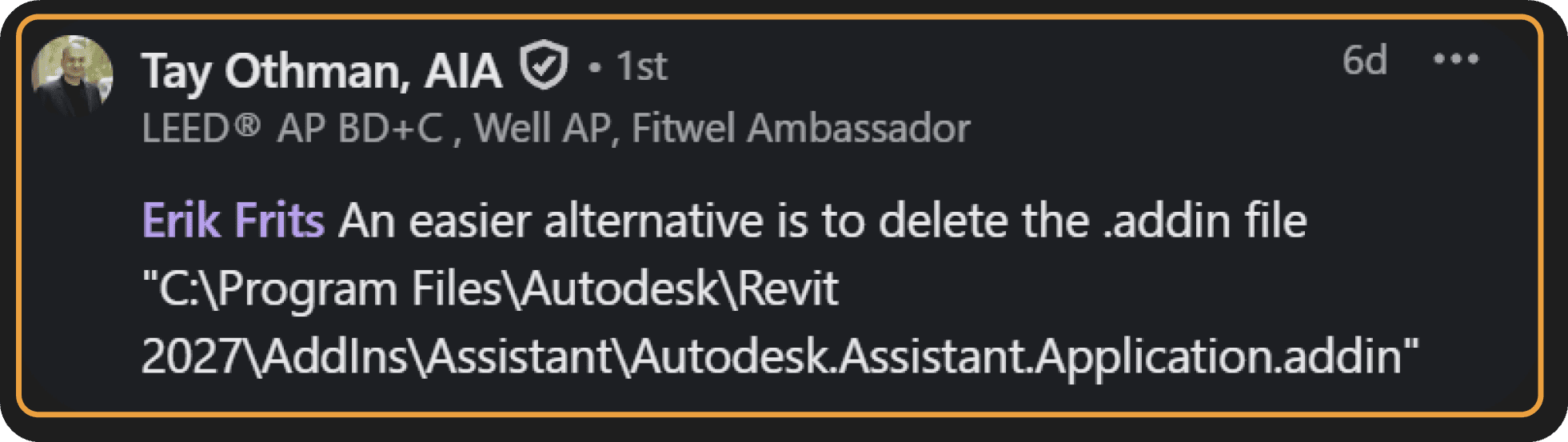
This is the least robust option. Addin will come back with any update and maybe some users should keep access to AI. So let's not do that...
2. Instead, we can setup EventTrigger and disable AI Assistant access. Users will haove to provide correct password or belong to trusted user group.
ANd to make it - pyRevit is the simplest way.
Setup pyRevit Hooks
EventTriggers are called hooks in pyRevit. And it's already made very simple to do.
We just need to create 📁hooks folder inside .extension and then create a python file with correct name so it executed on certain events. You can check pyrevit-hooks table.
In our case we need to create file called:
command-before-exec[ID_TOGGLE_AUTODESK_ASSISTANT].py
This will be a hook executed whenever users try to toggle Autodesk Assistant in Revit.
Inside this file, write this base:
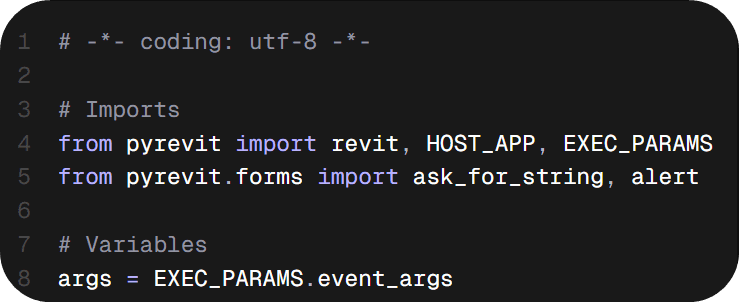
Now you need to select one of the option on how you want to restrict AI Assistant:
Password protect
Username groups protect
Project Name protect
Scroll down and choose correct snippet.
You can also mix and match if you want more control.
1. Password Protect
Only users with a password can use AI.
But password can be shared...
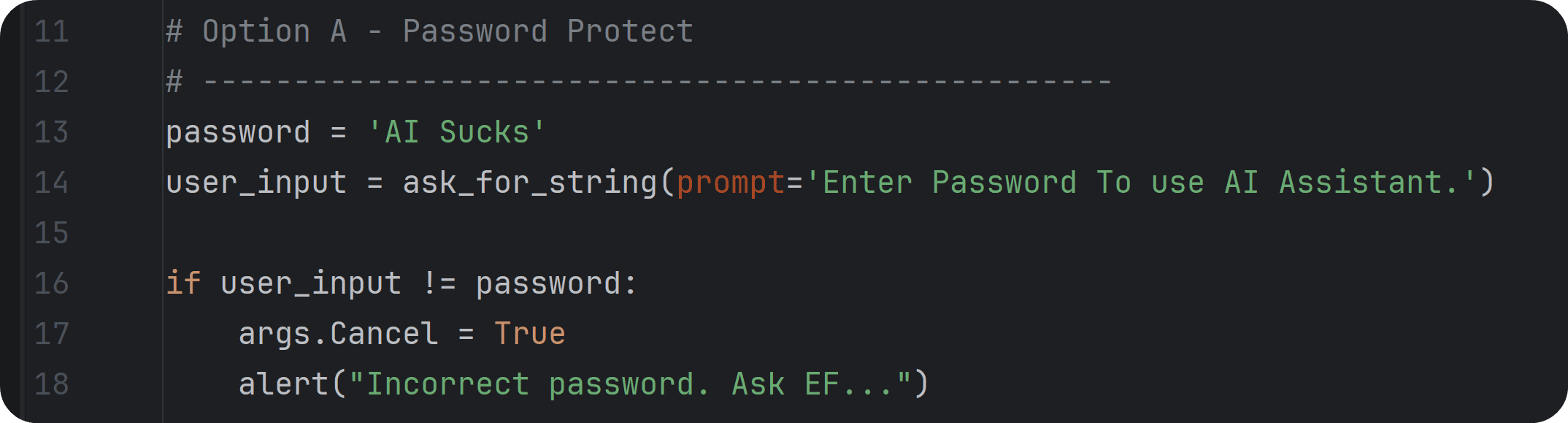
NB! Make sure to hide password outside of script.py
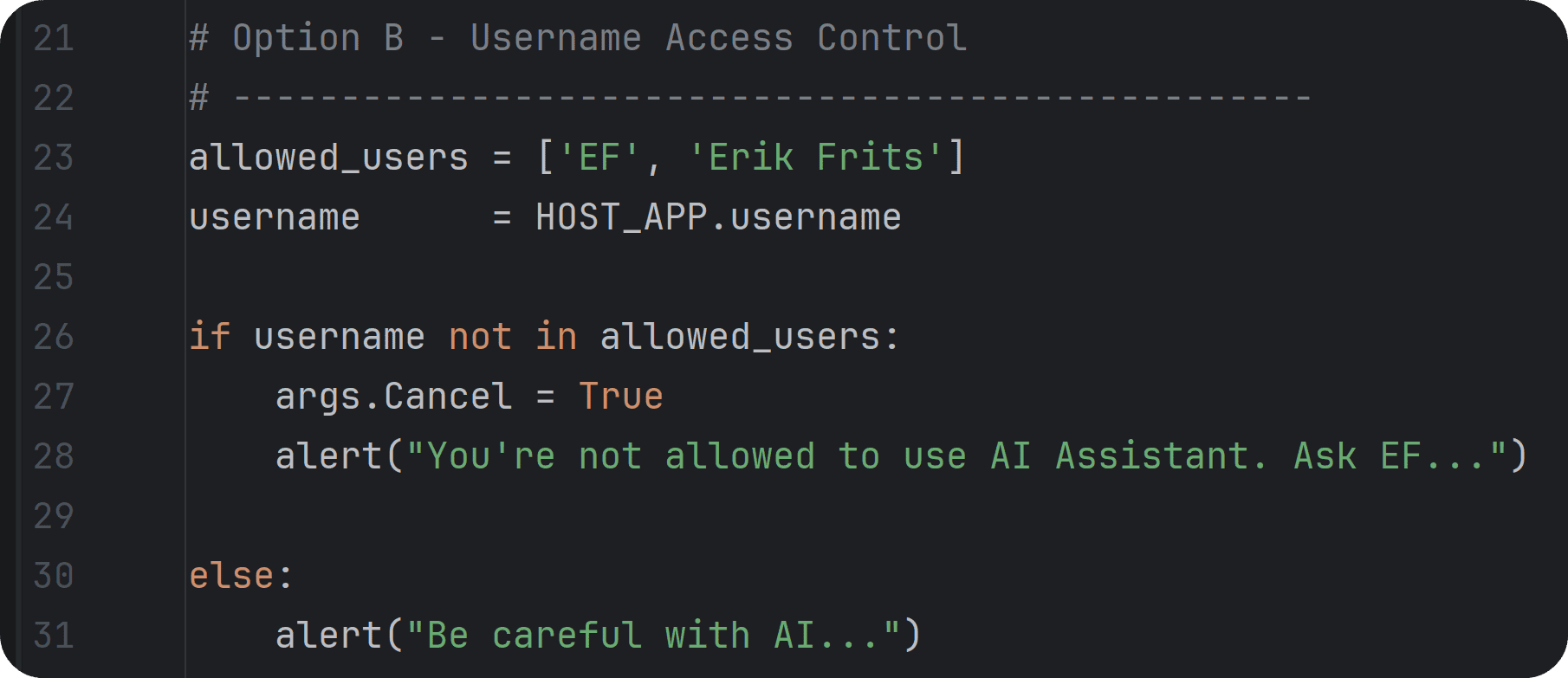
2. Username Protect
Let's go a step further and ensure only allowed users can use AI based on username. This gives you more control.
3. Project Name Protect
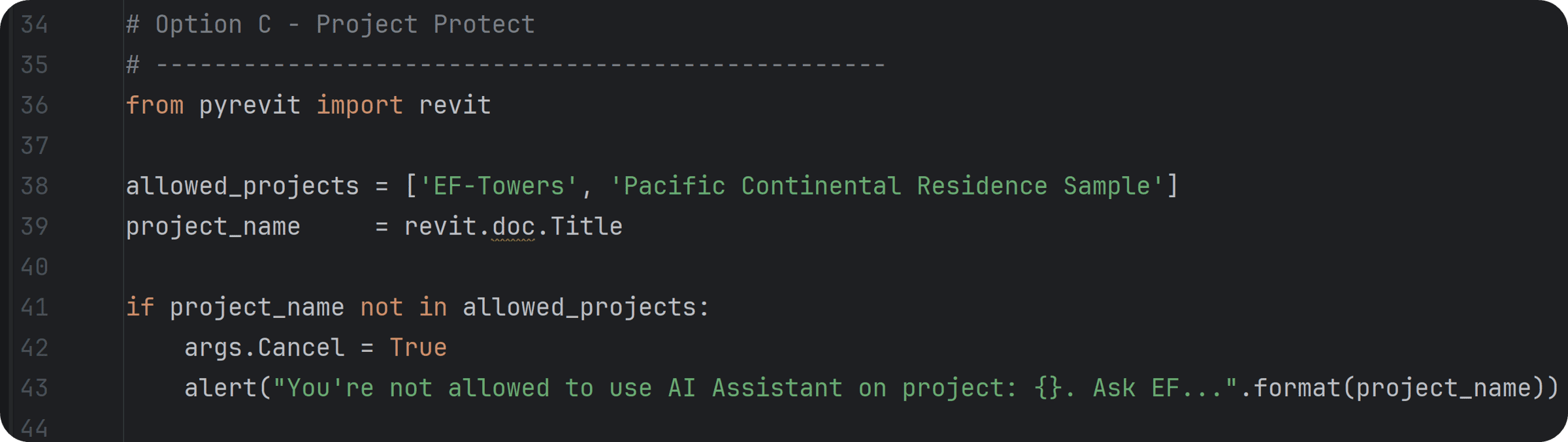
Alternatively, you can lock access by Project Name.
This is a good option to block AI Assistant on real projects, while letting users to test it on demo projects.
NB! We're not done!
So far, we're blocking AI Assistant toggle button. But AI window can open up automatically when you open first Revit project.
So we need to close to avoid users using it with another EventTrigger. But this time we have to set it up manually without hooks.
For that create a startup.py file in root folder of your extension.
📁ExtensionName.extension
∟📄startup.py
The code inside startup.py will execute everytime people with your extension start Revit. Inside we'll do the following:
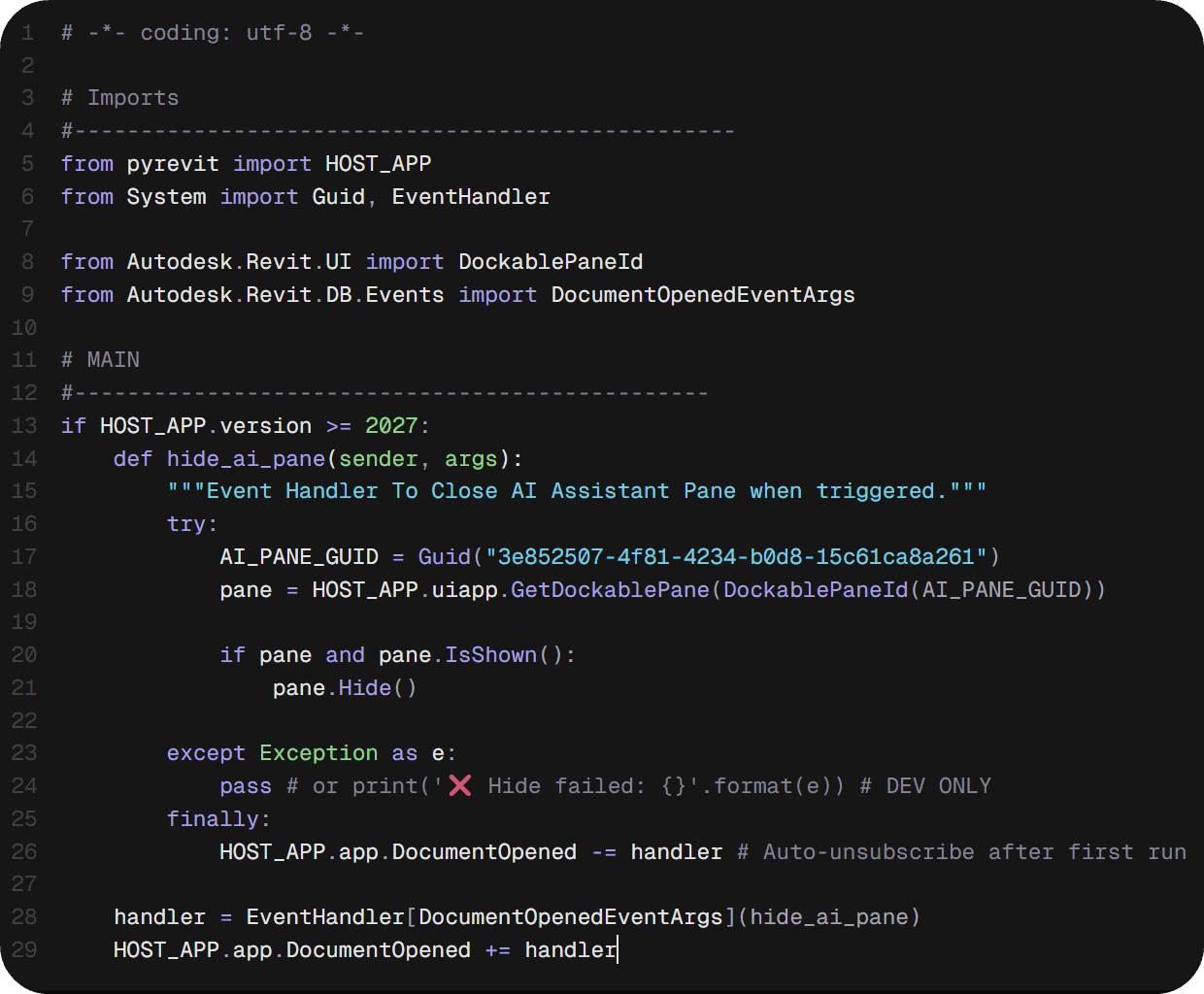
This is actually a native way to subscribe to Revit API events because we need to do that when Revit just opens up.
Code Breakdown:
Code executed when Revit Starts
Works only for Revit 2027+
We're defining event handler to close AI Assistant window
We're subscribing to DocumentOpenedEvent
We're unsubscribing from event after first use.
Now you can sleep tight
That's it. You just made your custom AI Assistant blocker that will work for anyone who has pyRevit Extension installed.
You can even push it further and add some logging, or more rules. But that's up to you.
Thanks to Tay Othman for preparing the base extension.
P.S.
If you want to learn pyRevit, I have pyRevit Challenge #2 coming up soon.
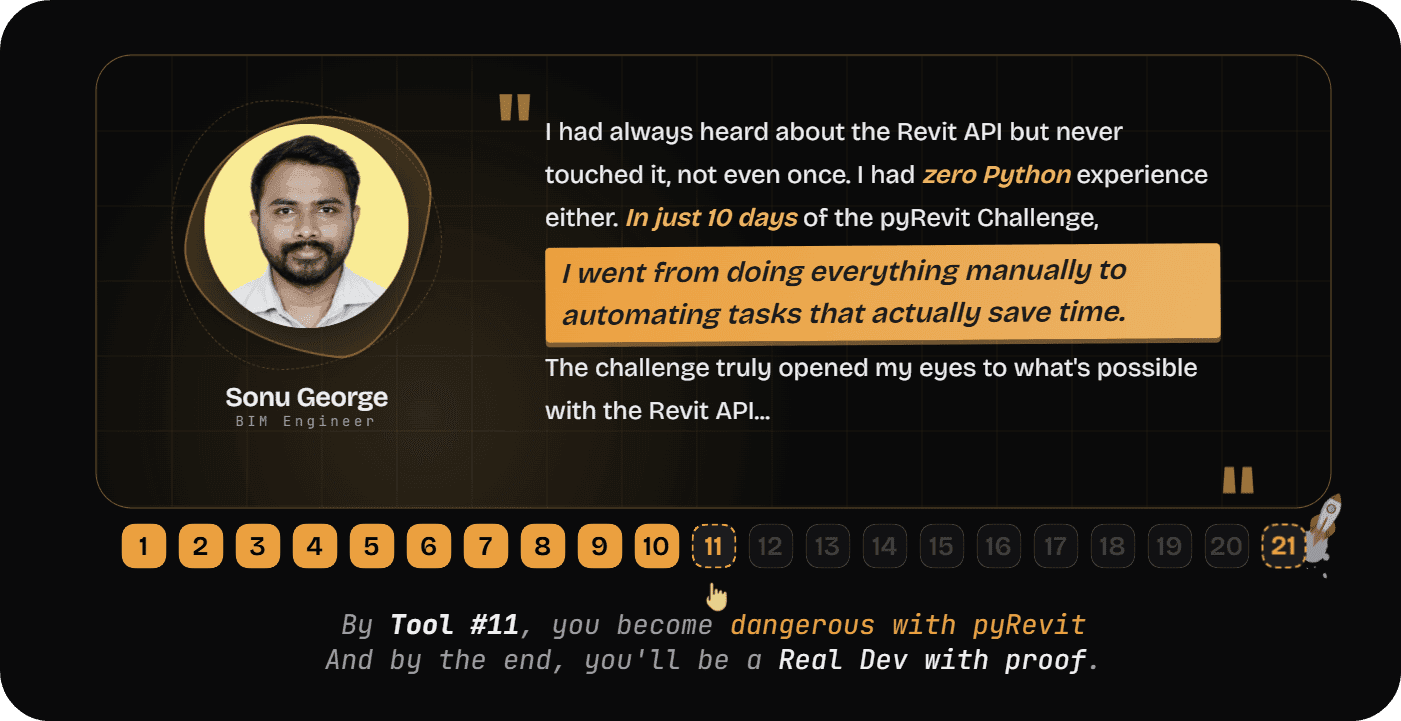
You'll build 21 custom tools and learn everything by doing. No theory. From day one you'll start creating tools using my 7-Step process for beginners.
Here's what Sonu George shared:
I'll share more details soonaaa.
Join Newsletter
📩 You will be added to Revit API Newsletter
Join Us!
which is already read by 9500+ people!