
Fast-Track pyRevit System™

Lesson 2
Your pyRevit Extension
Written Summary
Create Your Own pyRevit Extension in 2 Minutes ⏱️
Hey, welcome back! By the end of this lesson, you'll have your very own pyRevit extension sitting inside Revit — packed with resources, templates, tutorials, code samples, and even a cool Button Generator.
Literally everything you need to start creating your own custom tools in Revit. And the best part? It takes about two minutes to set up, because I'm providing a pyRevit starter kit that does everything for you.
All you have to do is download it, unzip it, rename two folders, and connect it to pyRevit. Super simple — anyone can do it. Let's go.
Step 1: Download the starter kit
First things first, we need to grab the starter kit.
Find the Download button under this video and click it.
You'll get a zip file — save it anywhere on your computer.
Extract everything from the zip.
I went to Documents and created a folder called my pyRevit extension, but honestly, place it anywhere and name the folder anything. It's super easy to move it around later, so don't stress it.
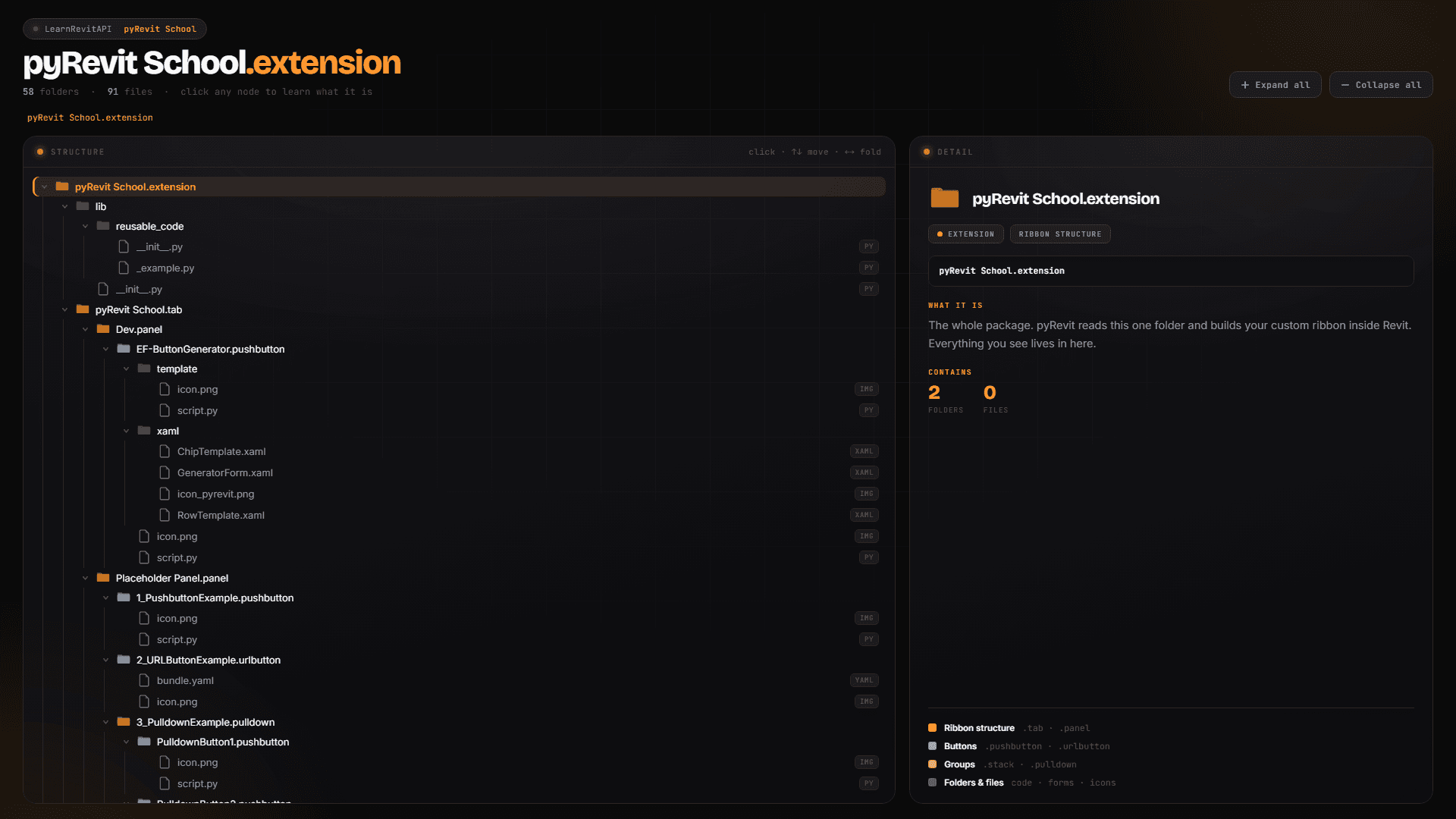
Once extracted, you'll find a .extension folder. Inside, it's just a folder structure with folders, icons, and Python scripts. This is the base for your pyRevit extension — I'll explain how it all works in a moment.
Step 2: Rename two folders
This is the part where the extension becomes yours. You only need to rename two things:
Select the .extension folder, hit F2, and rename it to whatever you want your extension to be called. I'm calling mine pyRevit School.
Go inside it, find the .tab folder, hit F2 again, and rename it too. This is the name you'll actually see as a tab inside Revit.
That's it. We renamed two folders. Done with this step.
Your structure should now look something like this:
⚠️ Important: Keep the
.extensionand.tabparts of the folder names exactly as they are — only change the name before them. If these are misspelled, pyRevit won't recognize your extension.
Now grab the path to the folder that contains your .extension folder — in my case, that's my my pyRevit extension folder. Copy it, we'll need it next.
Step 3: Connect it to pyRevit
Let's tell pyRevit where your extension lives:
Open Revit and go to the pyRevit tab.
Click the pyRevit pulldown and go to Settings.
Head to the last tab: Custom Extension Directories.
Click Add Folder, paste your path, and hit Enter.
Click Save and Reload.
🖼️ [IMAGE: pyRevit Settings window on the Custom Extension Directories tab, with the pasted folder path visible in the list]
⚠️ Important: Make sure you can NOT see the
.extensionfolder in the path itself. If your path points directly at the.extensionfolder, you chose the wrong one — go one folder outside of it. The path should point to the folder that contains your extension.
If you did everything correctly, a new tab appears in Revit with whatever name you chose. In my case — there it is, my pyRevit School tab.
🖼️ [IMAGE: Revit ribbon showing the newly created custom tab with the user's extension name, panels and buttons visible]
Don't see it? Usually it's because the .extension or .tab folder got misspelled during renaming. Go back and verify they're written exactly as they're supposed to be.
A quick tour of your new extension
Open your new tab and you'll see four panels:
Start Here — a quick tutorial to get you going.
Resources — quick links to all the relevant documentation, forums, stubs and more, plus the pyRevit script template, my older e-books, and a bunch of code samples for beginners. The code samples link takes you to my website, where you'll find lots of snippets — how to select elements, how to pick elements by rectangle, and so on. That way I can keep updating them if anything changes. There's also a link to pyRevit School.
Placeholder panel — example buttons so you can see how everything is organized.
Button Generator — more on this one in a second. 😉
💡 Tip: Hold Alt and click on any button to open its folder structure. This way you can go in, change the icon, modify the script, see how the buttons are organized, copy one, and follow along. This is how you'll learn the anatomy fast.
The Button Generator 🎛️
This is my favorite part of the starter kit. Click the Button Generator and you'll get a very simple menu that creates placeholder buttons for you.
Here's how to use it:
Click to add rows (or use Ctrl+Enter). Added too many? There's a button next to each row to remove it.
Choose the type of button you want to create — a regular push button, a stack, a URL button, or a pulldown.
Name it. I went with MyButton A, MyStack A, URL A, and Pulldown A — I'm not very creative, but you get the idea.
For pulldowns and stacks, fill in the nested items — for example Button A, Button B, Button C. Use a comma or Enter to confirm each one.
For a URL button, just type the address — I used google.com.
Choose which panel to target. I recommend always putting new buttons in the first panel.
Hit Create.
You'll get a quick report confirming everything was created — or flagging any issues, maybe with the names. Then your new buttons appear right in your tab.
🖼️ [IMAGE: The Button Generator window with several rows filled in — a button, a stack with nested items, a URL button, and a pulldown — just before clicking Create]
These are placeholders — click one and nothing really happens yet. But that's the point: you can open and modify the script, and it's a super quick way to create a button where you can start working. Later you can change the icon and everything else.
Why this step matters so much
By now, you should have your very own custom extension in Revit. And I hope you're excited — because I think this step alone is going to motivate you like nothing else.
From today, every time you open Revit, you'll see your own toolbar with the name you chose. And trust me, you'll naturally want to go back, create more tools, and make it more powerful.
What's next
To help you do exactly that, let's head to the next lesson — pyRevit Anatomy — where I'll explain how everything inside your extension actually works, so you can customize all of it. See you there!