
Day
02
Challenge

Have you heard of stories when someone ordered doors or windows with the wrong swing… And someone ordered A LOT of wrong ones…
The worst part? Revit already has all the information… It just doesn't show it by default…
So, how about we fix that? 👀
Today We're Practicing:
>>>
Revit API Collector
>>>
Read Element Properties
>>>
Read and Write Parameters✨
>>>
Make Changes with Revit API ✨

Let's Create
"Door-Swing Detective"
Using 7-Step PROCESS
PLAN
Which way does it swing?
Ordering wrong doors sounds funny, until it happens on your project… Delays, budget increase and a lot of pointing fingers will happen. So let's make it easier for us to find the door swing.
So, The Goal for Today's Tool:
Let's look inside our Doors and write if it's mirrored or not in one of parameters.
This will help us sort it in schedules and even display it inside door tags. And while we do that you'll also learn how to work with parameters.
RESEARCH
Coding CheatSheet
Here's everything you might need for today's challenge.

Coding Blocks
0. Pick Single Element
2. Get Element Parameter
4. Write Parameters
1. Get All Doors/Windows
3. Read Parameter
5. Transaction - Allow Changes
0. Pick Single Element
1. Get All Doors/Windows
2. Get Element Parameter
3. Read Parameter
4. Write Parameters
5. Transaction - Allow Changes

Revit API Docs
FilteredElementCollector Class (FEC for short)
.OfCategory() Method
Parameter Class
.LookupParameter() Method
.InternalDefinition.BuiltInParameter Property
BuiltInParameter Enumeration
BuiltInCategory Enumeration
FamilyInstance.Mirrored Property
Transaction Class

Notes
🔸 How To Make Changes:
Revit protects models from API. To make any changes you need to Start and Commit transaction, and put code with changes in between.
🔸 Keep Transaction out of loops
Never put Transaction inside of loops. This will noticeably reduce the execution speed. It's like saving Revit model after modifying each element…
🔸Where To Find Correct BuiltInParameter:
Use RevitLookup to look inside Parameter -> Definition -> BuiltInParameter.
🔸Parameter StorageType
Make sure you use correct type of data. If you try to provide Integer to Text parameternothing will happen, but for some reason it doesn't even give us an error which can be confusing…
🔸 Instance/Type Parameters
You can only get instance parameters from instances and type parameters from types.
🔸 ElementId(-1)
In Revit API when parameters reference other objects (Type, Group, Material, Level…) it stores valueas ElementId. If there's nothing, then it will be ElementId(-1) or code equivalent ElementId.InvalidElementId.


AI Prompt
You can ask AI to help you with the research
but it's NOT 100% perfect solution. Do not rely too much on AI.
RESEARCH
Coding CheatSheet
Here's everything you might need for today's challenge.
Coding Blocks
0. Pick Single Element
1. Get All Doors/Windows
2. Get Element Parameter
3. Read Parameter
4. Write Parameters
5. Transaction - Allow Changes
Revit API Docs
FilteredElementCollector Class (FEC for short)
.OfCategory() Method
Parameter Class
.LookupParameter() Method
.InternalDefinition.BuiltInParameter Property
BuiltInParameter Enumeration
BuiltInCategory Enumeration
FamilyInstance.Mirrored Property
Transaction Class
Notes
🔸 How To Make Changes:
Revit protects models from API. To make any changes you need to Start and Commit transaction, and put code with changes in between.
🔸 Keep Transaction out of loops
Never put Transaction inside of loops. This will noticeably reduce the execution speed. It's like saving Revit model after modifying each element…
🔸Where To Find Correct BuiltInParameter:
Use RevitLookup to look inside Parameter -> Definition -> BuiltInParameter.
🔸Parameter StorageType
Make sure you use correct type of data. If you try to provide Integer to Text parameternothing will happen, but for some reason it doesn't even give us an error which can be confusing…
🔸 Instance/Type Parameters
You can only get instance parameters from instances and type parameters from types.
🔸 ElementId(-1)
In Revit API when parameters reference other objects (Type, Group, Material, Level…) it stores valueas ElementId. If there's nothing, then it will be ElementId(-1) or code equivalent ElementId.InvalidElementId.
AI Prompt
You can ask AI to help you with the research
but it's NOT 100% perfect solution. Do not rely too much on AI.
OUTLINE
Step-by-Step Plan
Break down logic of the tool idea into smaller chunks so it's easier to brainstorm, find hidden steps and code.
1
Get
All Doors

2
Find Swing
Direction
3
Write Result
To Parameter
4
Optionally:
Report Changes
1
Get
All Doors
3
Write Result
To Parameter
2
Find Swing
Direction
4
Optionally:
Report Changes

NB!
TRY BUILDING
THIS TOOL YOURSELF
DON'T RUSH TO SOLUTION
Unless… You're a Beginner
According to GENERATION EFFECT
The Harder You Work, The Deeper It'll be Wired in Your Brain
NB!
TRY BUILDING
THIS TOOL YOURSELF
DON'T RUSH TO SOLUTION
Unless… You're a Beginner
According to GENERATION EFFECT
The Harder You Work, The Deeper
It'll be Wired in Your Brain
CODE
Code Quick-n-Dirty.
The Goal is to create a proof of concept. Don't try to make it perfect. Skip steps if necessary. Keep it ugly. Keep it slow. JUST. MAKE. IT. WORK…
Create Proof Of Concept
This is already a very simple tool…But we can still simplify it even more to create quick proof of concept.
For examples, when creating new tools - it doesn't make sense to go over hundreds of elements from the start… Instead, it's much better to focus on one element at first.
Once it works, then you can expand it to all elements in the model and see if there are any exceptions that break your tool.
So let's focus on one door.
.
SCRIPT: PROOF OF CONCEPT
CODE
Code Quick-n-Dirty
The Goal is to create a proof of concept. Don't try to make it perfect. Skip steps if necessary. Keep it ugly. Keep it slow. JUST. MAKE. IT. WORK…
Create Proof Of Concept
This is already a very simple tool…But we can still simplify it even more to create quick proof of concept.
For examples, when creating new tools - it doesn't make sense to go over hundreds of elements from the start… Instead, it's much better to focus on one element at first.
Once it works, then you can expand it to all elements in the model and see if there are any exceptions that break your tool.
So let's focus on one door.
.
SCRIPT: PROOF OF CONCEPT
EDIT
Refactor Everything
Once proof-of-concept works - we can focus on all steps to make everything more structured, optimized and easier to read.
REFACTOR CODE
Proof of concept works, so we can edit code to do the same thing but for all doors in the project.
Also, we'll encounter a few exceptions due to Groups… And we'll need to decide on how to handle parameters that do not have VariesByGroup…
REFACTORED CODE
EDIT
Refactor Everything
Once proof-of-concept works - we can focus on all steps to make everything more structured, optimized and easier to read.
REFACTOR CODE
Proof of concept works, so we can edit code to do the same thing but for all doors in the project.
Also, we'll encounter a few exceptions due to Groups… And we'll need to decide on how to handle parameters that do not have VariesByGroup…
REFACTORED CODE
STRESS-TEST
Time To Break It!
Don't rush sharing your tools.
Try breaking it before your team does it… You don't want to hear how your tools fails at the cost of your reputation.
Test #1 - Check API Changes
Once your tool is ready - don't forget to check for API changes.
You can test it manually opening each Revit
You can manually check in Revit API Docs
Or we can ask AI to do the analysis for us ⭐
Guess which one we'll do… 🙂
But this is a very simple code with just a few lines of code so luckily there are no changes.
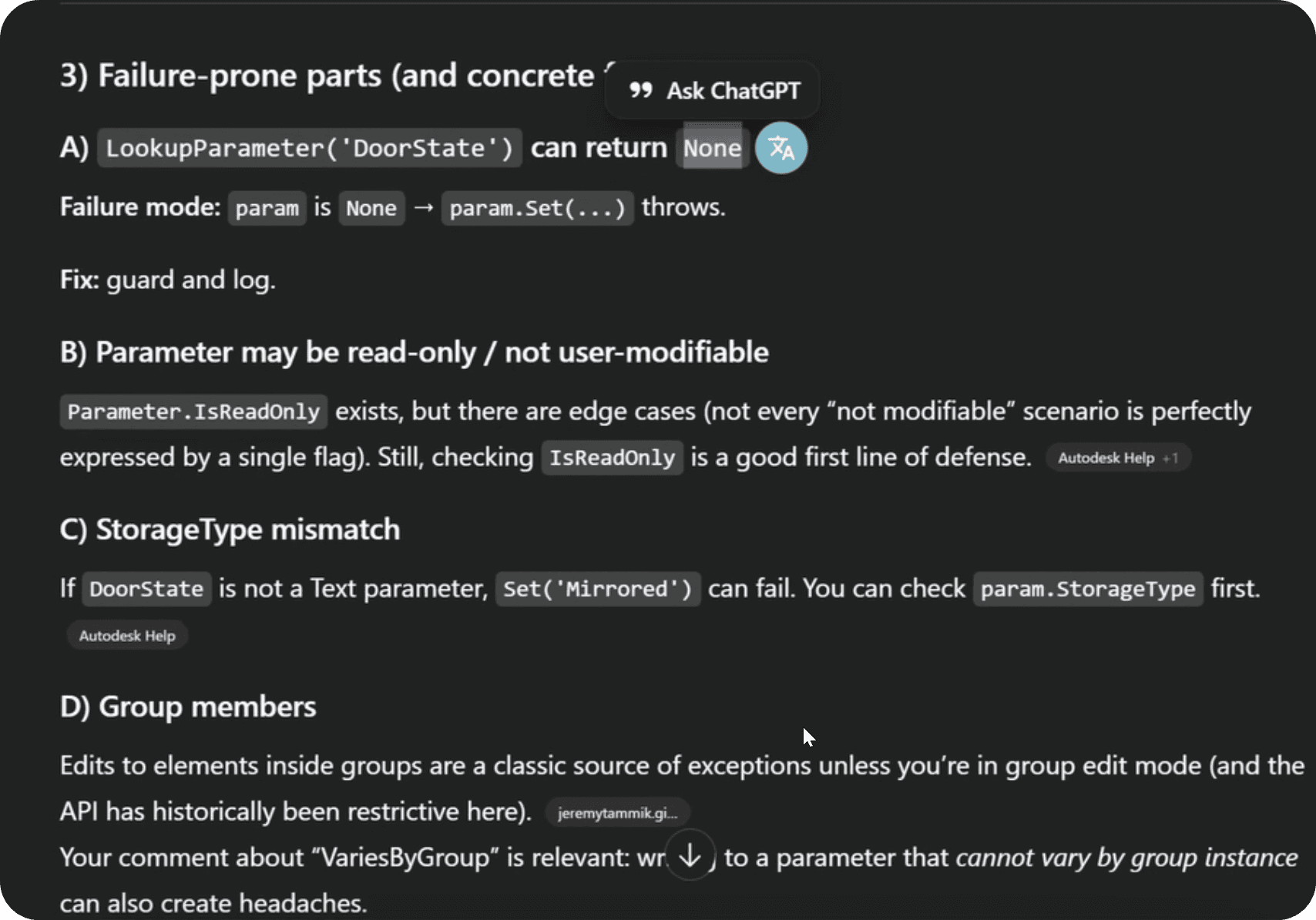
Caption
PROMPT:
Test #2 - Ensure Parameter Exists
When you work with Built-In Parameters you know they are 100% available in all Revit projects.
However, when you use Project/Shared parameters then there's always a chance that project might miss them. Therefore, it's best to double check that you found shared parameter before you try to Read/Write values from it.
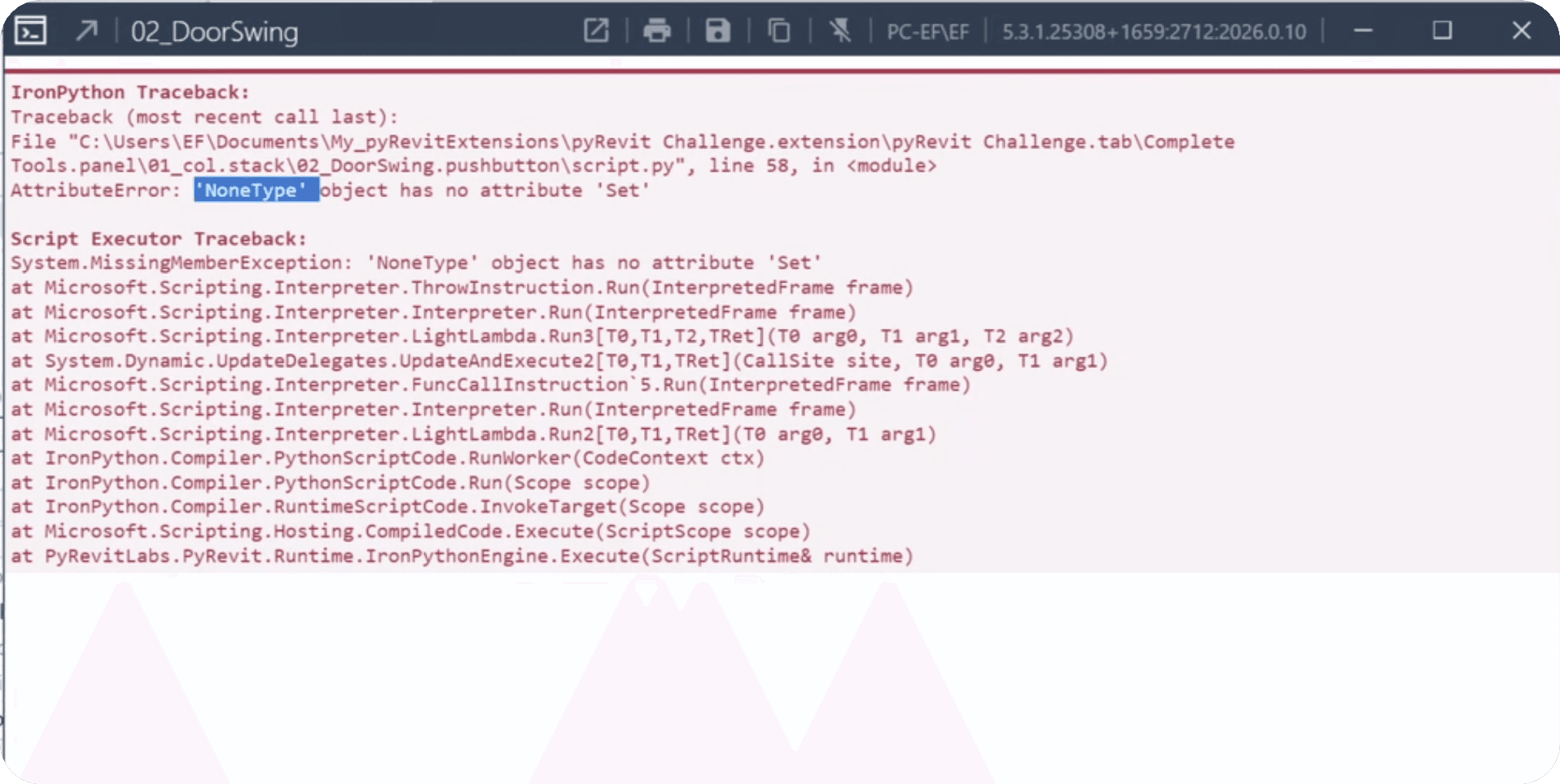
Very common error: NoneType object has no attribute 'AttrName'
Means you didn't
SOLUTION #2
Test #3 - Check if Elements in Group
Whenever you want to bulk update parameter values you can encounter issues because of groupped elements. Because as you know it some parameters can only be modified from inside the group, and we can't do that with Revit API…
So it might be worth checking if element is part of the group or not before trying to modify it.
SOLUTION #3
Warning- Paramter StorageType
This is more a reminder that fix…
Whenever you write values in Parameters, it's important to use the same StorageType.
Text Parameter? -> String
Whole Number or Yes/No Parameter? -> Integer
Decimal number? -> Double (float in python)
Refers to other elements? -> ElementId
⚠️ If you use wrong StorageType, it won't change the value, but als it won't give you an error. And you'll get confused why you get no results and no errors when you code looks good.
STRESS-TEST
Time To Break It!
Don't rush sharing your tools.
Try breaking it before your team does it… You don't want to hear how your tools fails at the cost of your reputation.
Test #1 - Check API Changes
Once your tool is ready - don't forget to check for API changes.
You can test it manually opening each Revit
You can manually check in Revit API Docs
Or we can ask AI to do the analysis for us ⭐
Guess which one we'll do… 🙂
But this is a very simple code with just a few lines of code so luckily there are no changes.
Caption
PROMPT:
Test #2 - Ensure Parameter Exists
When you work with Built-In Parameters you know they are 100% available in all Revit projects.
However, when you use Project/Shared parameters then there's always a chance that project might miss them. Therefore, it's best to double check that you found shared parameter before you try to Read/Write values from it.
Very common error: NoneType object has no attribute 'AttrName'
Means you didn't
SOLUTION #2
Test #3 - Check if Elements in Group
Whenever you want to bulk update parameter values you can encounter issues because of groupped elements. Because as you know it some parameters can only be modified from inside the group, and we can't do that with Revit API…
So it might be worth checking if element is part of the group or not before trying to modify it.
SOLUTION #3
Warning- Paramter StorageType
This is more a reminder that fix…
Whenever you write values in Parameters, it's important to use the same StorageType.
Text Parameter? -> String
Whole Number or Yes/No Parameter? -> Integer
Decimal number? -> Double (float in python)
Refers to other elements? -> ElementId
⚠️ If you use wrong StorageType, it won't change the value, but als it won't give you an error. And you'll get confused why you get no results and no errors when you code looks good.
Time To Celebrate
Share Your Win On LinkedIn
With #pyRevitChallenge
I'll Embed You Here!
© 2023-2026 EF Learn Revit API
© 2023-2026 EF Learn Revit API
© 2023-2026 EF Learn Revit API